WARDOGS / FIELD NOTES
Wing Mait setup: minimap, voices, first match
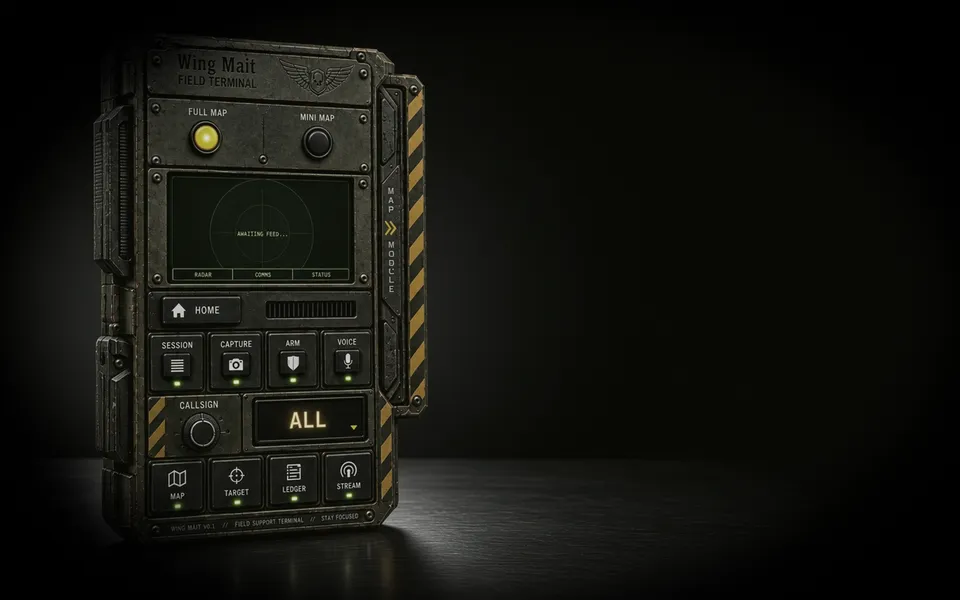
Everything you need before Wing Mait speaks its first callout: the install, your licence key, matching Fixed or Follow minimap behavior, picking a voice, and what to expect once you ARM.
Quick card
- Install note
- SmartScreen warning is expected
- Licence activation
- Settings, Licence card, Activate
- Minimap setup
- Choose Fixed or Follow
- Before ARM
- Pick a character voice
Install Wing Mait
Run the installer you downloaded from the GitHub release. This beta build is unsigned, so Windows SmartScreen will likely show a warning the first time you run it. Choose More info, then Run anyway to continue. That warning is expected on every unsigned beta build and does not mean anything is wrong with the file, especially if you already checked its SHA-256 against the published checksum.
Activate your licence key
Open Wing Mait and go to Home, then open the Settings drawer. Find the Licence card, paste in the key Lemon Squeezy emailed you, and click Activate. Capture stays locked until the licence is active. Once it is, Wing Mait keeps working offline for 7 days before it needs to check in again.
Match Wing Mait to your WARDOGS minimap
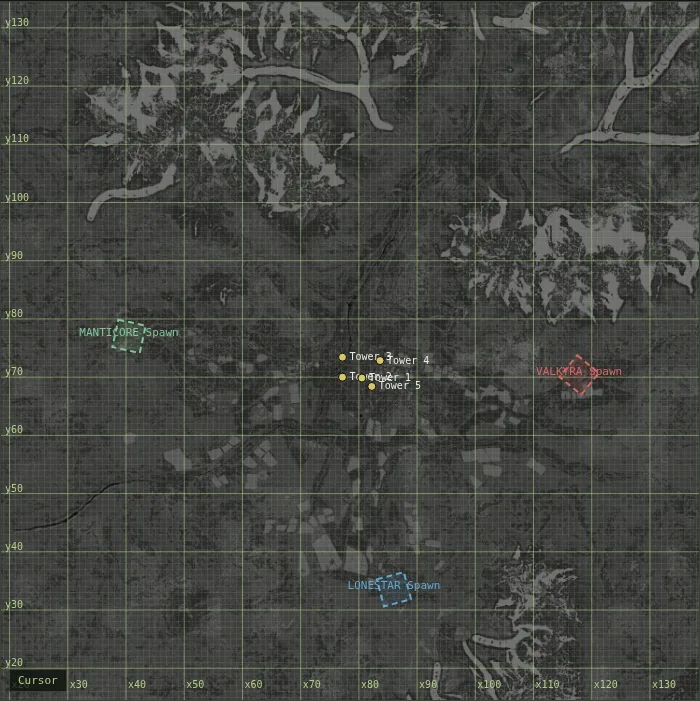
In Wing Mait Setup, answer how your WARDOGS minimap behaves. Choose Fixed when the terrain stays north-up and the player chevron rotates. Choose Follow when the player chevron stays pointing up and the terrain rotates underneath it. Bearings stay off until you choose, because guessing the wrong behavior would produce wrong compass callouts. If you change the WARDOGS setting later, change this selector to match before you ARM again.
Pick a voice, then ARM
Back in Wing Mait's Settings, pick the character voice you want calling things out. When you are ready to play, click ARM. Wing Mait starts watching your screen capture only once it is armed; it does nothing before that.
What you will hear
A downed teammate called out by compass bearing, so you know which direction to move without checking the map yourself. Enemy contact call-outs when Wing Mait sees them appear on your minimap. If you go down yourself, Wing Mait goes quiet on your own state rather than narrating your own death back at you.
What you will not hear
Wing Mait never reads chat aloud, text or voice, under any circumstance. Everything it says is worked out from what it sees on your minimap, nothing else.
Report a bad callout
If a callout sounds wrong, turn on recordFrames in Settings before it happens again; it captures the frames around a callout so the moment can be checked against what was actually on screen. Log it in the backtest sheet linked from Settings with a timestamp and what you expected to hear instead. That is how the callout engine gets tuned during the beta.
Related field notes
 WARDOGS10 Sep 2026First dropsLearn how the three factions, moving Control Zone, Hot Zone scoring and cash carry shape a first match, with notes on early loadouts and beta access.FIELD NOTE 29
 WARDOGS10 Sep 2026Best settings for visualsUse visibility focused graphics settings: keep mesh detail and view distance high, understand Potato Mode tradeoffs, and tune streaming, colour, audio and RTX.FIELD NOTE 30
 WARDOGS10 Sep 2026Weapons and loadoutsCompare the free starter rifles, the T-21 value case and weapon traits that affect handling, then follow the guide to rebuy your last loadout mid-match.
Wing Mait is an independent project, not affiliated with or endorsed by WARDOGS or its publisher.